
Building AI Ready Templates & Populating a Template with AI
The Generate Site with AI endpoint lets you populate a template with AI-generated content. The AI analyzes your template (Duda or custom) to identify pages and elements, then generates and places content based on the business information you provide.
What changes:
- Text, images, and icons are populated in place of placeholder content
- Page names may be adjusted to better fit the business context
What stays the same:
- Pages, structure, and layout remain unchanged
- No additional pages are created beyond what exists in the template
Supported widgets
Most common widgets are supported. If a widget is not supported the content inside of the widget will not be generated by AI. The widget can still be in the template and will not break upon content generation.
We’ll continuously add support for more elements, as soon as more widgets are supported their content will be generated in your pre-existing templates.
- Examples of currently unsupported elements: Restaurant Menu, Mega Menu, Custom Links
- Custom Widgets: Currently, custom widgets will mostly be skipped by AI in the generation process, some aspects of the custom widget might be generated like a large heading. If you have surrounding text for the custom widget better to build it directly into the site and not in the custom widget itself.
Working with dynamic pages, connected data, store & blog
Connected Data & Inline Binding:
- If an entire widget is connected to a Collection or Business Info with Connected Data; this content will be skipped by AI. To update this content you must update the source of the data (Business Info, Business Text, Collection) for the content to be swapped.
- Dynamic page content will not be altered in the generation flow - to update dynamic page content you can update the data source (content library or collection) after the site is created.
- Do not use inline binding in your template, this content will be replaced by AI.
Store & Blog
- Store and blog content will not be generated upon site creation, you can generate store products & blog posts in the UI with Copilot or manually post site creation or using supported API’s.
Multi-language templates
- Multiple language templates are not yet supported, navigation will not be updated in each language and while content may be generated in each language it will be unique per language rather than translation of the primary language.
Best practices for creating templates for AI content population
- Build your template using supported widgets like text, image, icon, photo gallery, media slider, accordion.
- Rely on your site theme (theme text, theme colors, theme buttons etc) when building the template to ensure that any color changes made in the generation flow will apply properly to the site. We recommend using the color logic available in the section below.
- Connect your logo and any other widgets to the Content Library Business Info using connected data. Do not use inline binding in your template, this content will be replaced by AI
- Avoid using decorative content like solid colored images in place of using background color
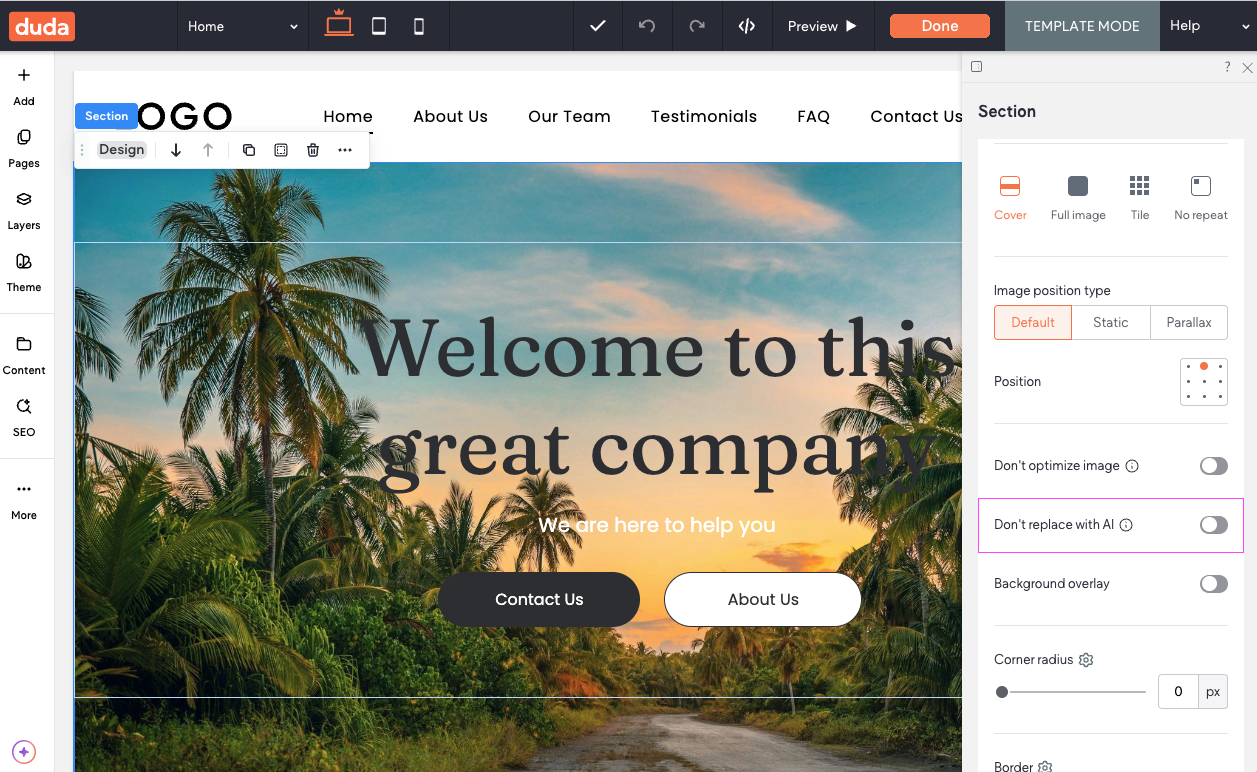
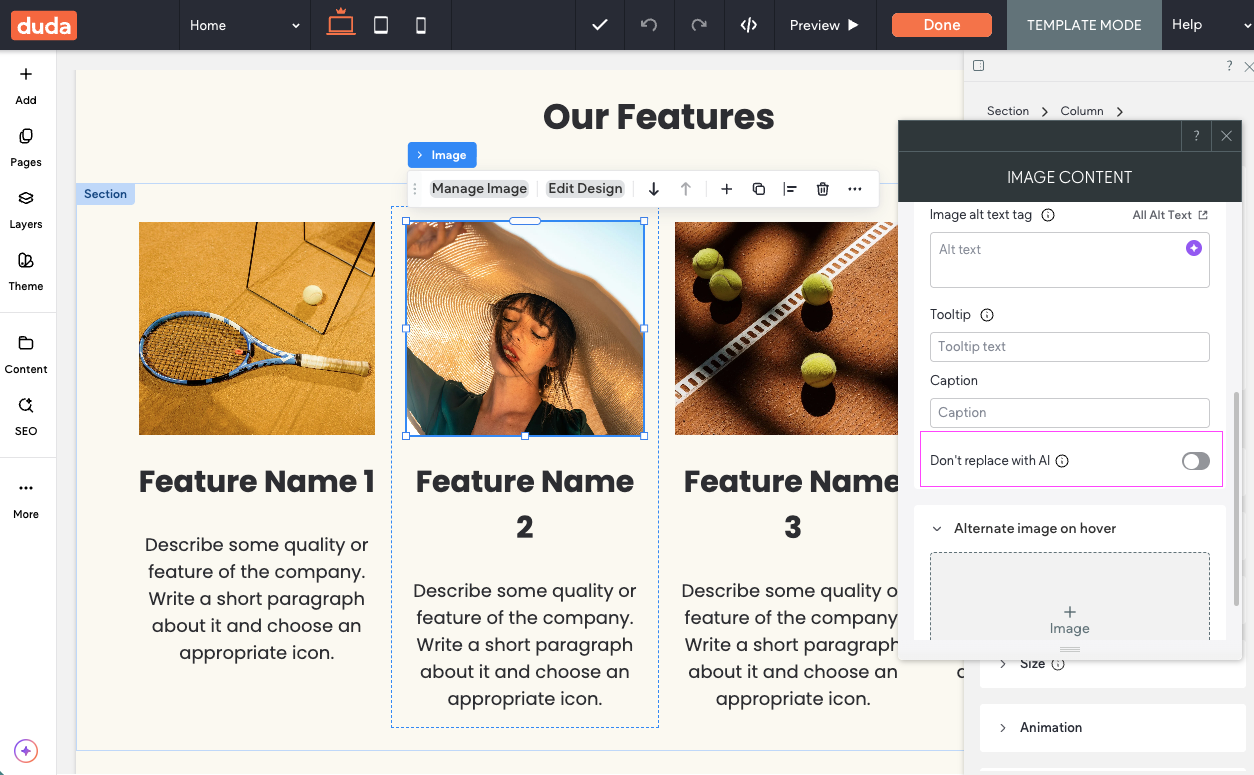
- Toggle on skip element for any decorative visual elements should not be altered by AI (for example a decorative icon or gradient backgrounds that should always remain in the template). Skip element is available only in Template Mode, for section & container backgrounds and image, icon and media slider widget
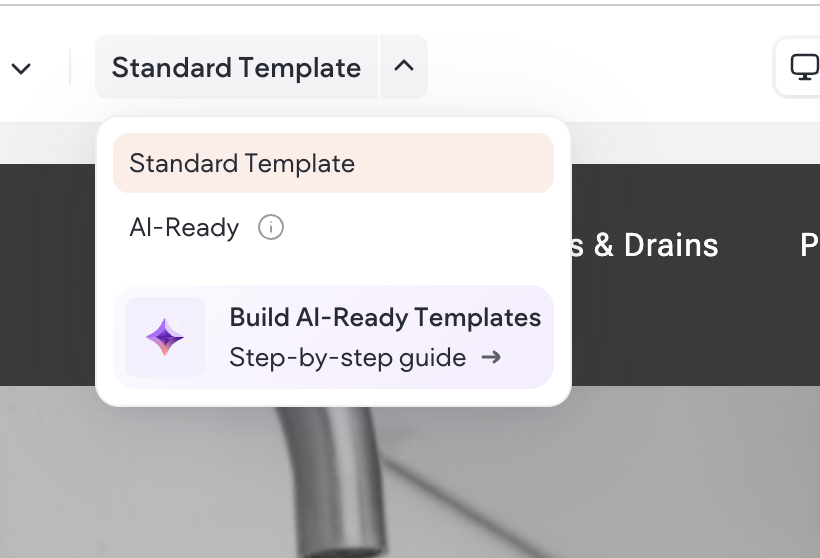
- Mark your template as AI-ready
Site Theme
Updating colors in the populate template with AI flow:
There are two ways to update colors either instructions field or Theme object, read more below:
-
Instructions Field The simplest way to update your sites’ color theme is to pass Duda theme instructions like “use pinks and blues for the site colors” or “Use colors #87CEEB #FF69B4 for site theme” via the instructions field, when passing theme colors via the instructions Duda will handling the mapping of those colors to your site theme.
-
Theme API Object If you plan to update your theme colors via API using the site theme object, we recommend following a standardized approach to your site theme as detailed below, to allow you to easily pass colors that should maintain good contrast on your site.
Note this is a recommended approach and not a requirement, you are free to use site theme colors in any structure of your choice. You can update colors for your site by passing your new colors via the Site Theme API.
- Color 1 is always used for the main text and represents the strongest contrast color (the darkest color in light themes, or the lightest color in dark themes).
- Color 2 is used for buttons, button hover states, and sometimes as secondary text. It provides enough contrast to remain readable, but is softer than Color 1.
- Color 3 is the primary background color (the lightest color in light themes, or the darkest color in dark themes) to ensure strong contrast with text.
- Colors 4 and 5 are additional background colors, used to create visual variety and separate sections while staying within the same theme.
- Color 6 and above are flexible and can be used freely for accents or special use cases.
What should the optional instructions field be used for?
The instruction field can be used for passing information like unique selling points, more details on content tone of voice, specific image instructions, keyword information or site theme instructions. You can use instructions like:
Images should be scenic only, with no people visible (no faces, bodies, hands, reflections, or silhouettes). Set the scene in Bora Bora with a luxurious tropical vibe: overwater bungalows, turquoise lagoon, white-sand beaches, palm trees, coral reefs, and dramatic sunset/golden-hour lighting. Keep the imagery bright, clean, and aspirational, like a high-end travel brochure.

## Unique selling points to highlight throughout
- Small groups (max 8) + private tours available
- Local, licensed guides; storytelling and deep local knowledge
- Routes beyond the tourist center (Jordaan, De Pijp, NDSM, hidden courtyards)
- Flexible scheduling + easy rescheduling
- Transparent pricing (no hidden fees)

## Style
- Warm, confident, clear
- Benefits should be specific and concrete

## Constraints
- Do not invent exact numbers, awards, or ratings
- Avoid clichés (e.g., “unforgettable experience”)

##Theme
- Use cool blues & yellow highlights for the site colors
Updated 7 months ago